> ## Documentation Index
> Fetch the complete documentation index at: https://developers.perform.ai/llms.txt
> Use this file to discover all available pages before exploring further.
# Shopify integration setup
> Connect your Shopify store to Perform.AI — shipments import automatically, tracked end to end.
The Shopify integration imports orders and shipments from your Shopify store into Perform.AI automatically — no API coding required. Setup has three steps: create the integration in Perform.AI, create a Shopify app to obtain credentials, then save and activate.
Perform.AI only **reads** the relevant Shopify data (orders, fulfillments, product images); it never writes back to your store.
## Step 1 — Create the integration in Perform.AI
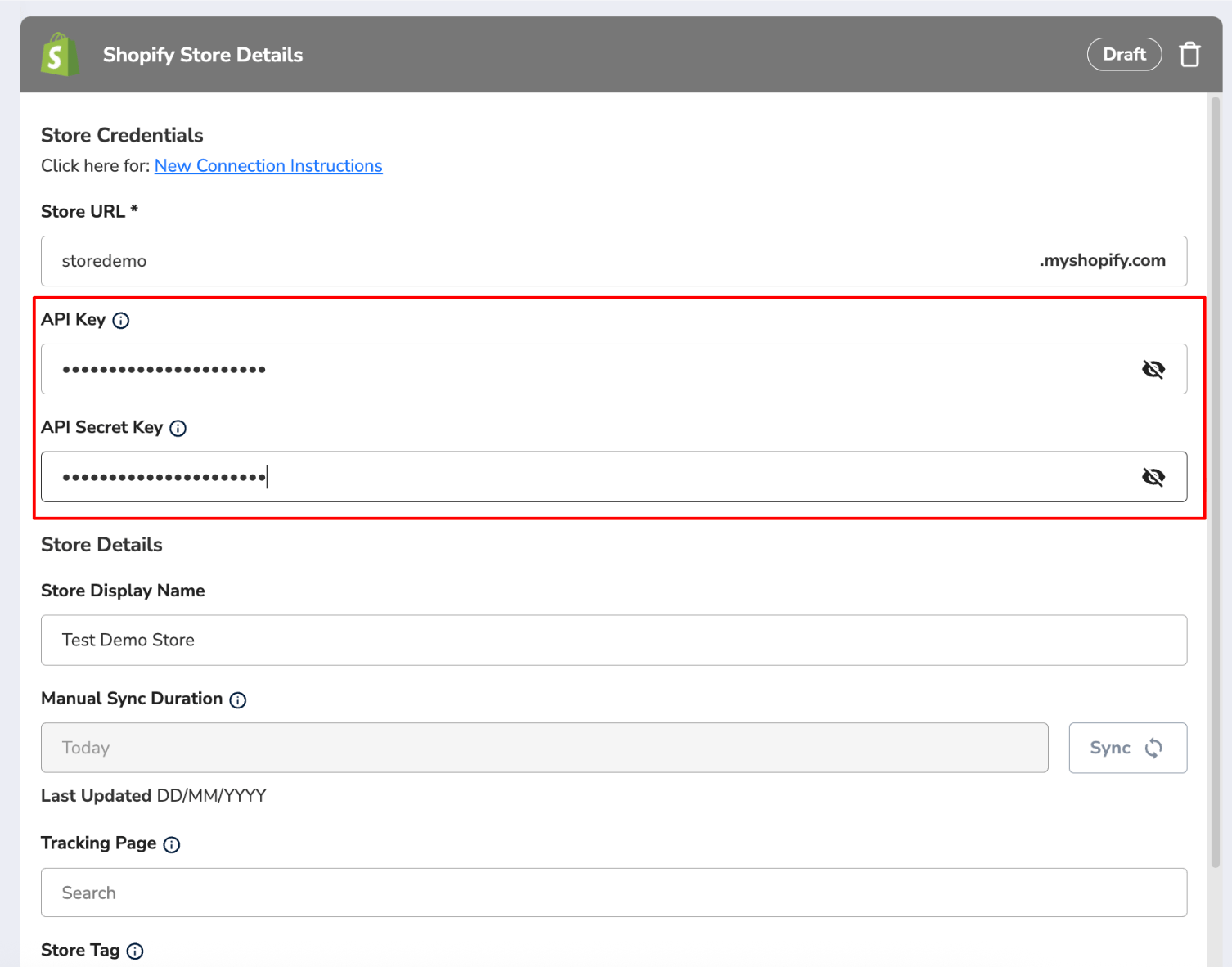
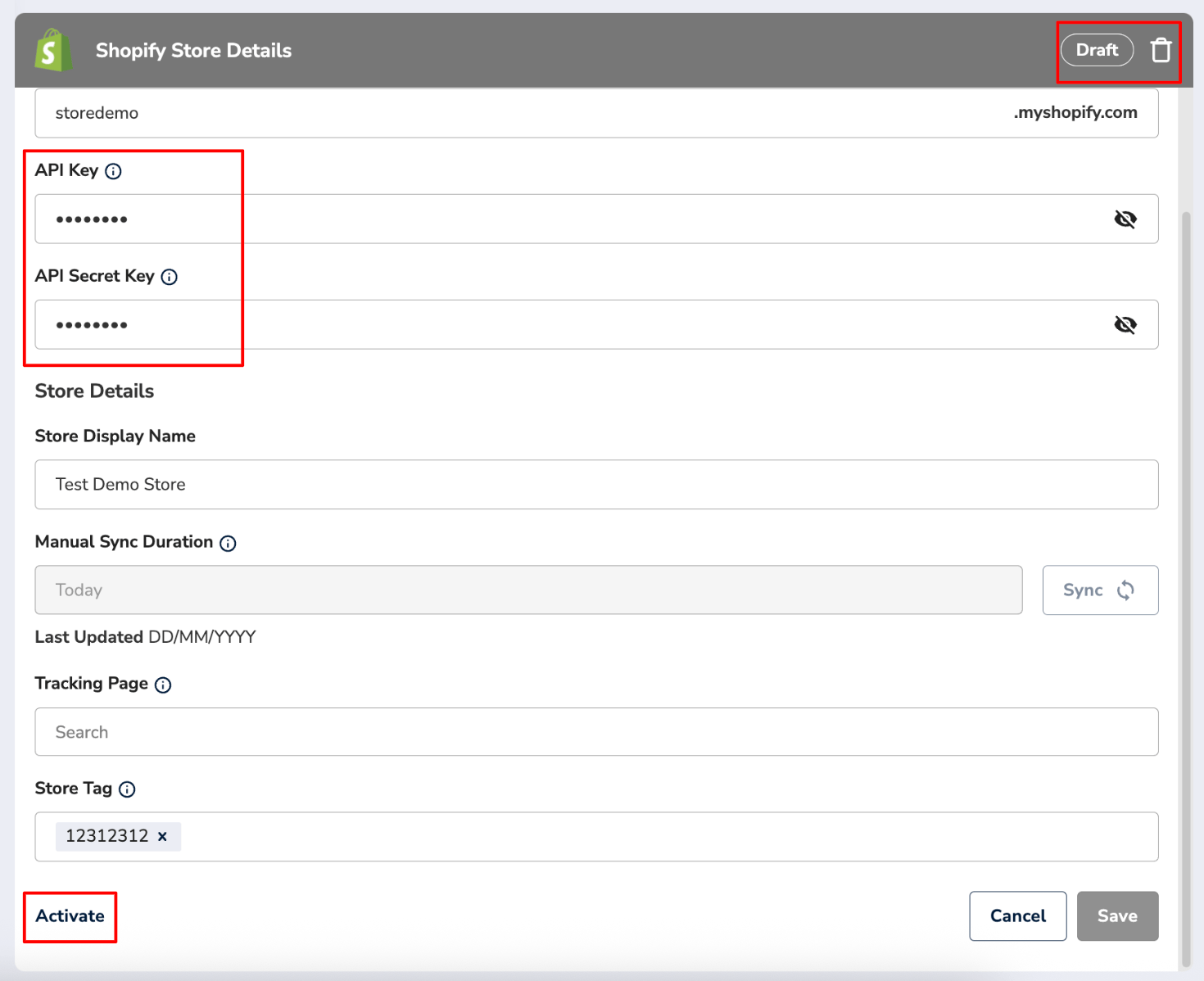
In your account, open the **Integrations** page and select **Add Store**. The configuration panel asks for:
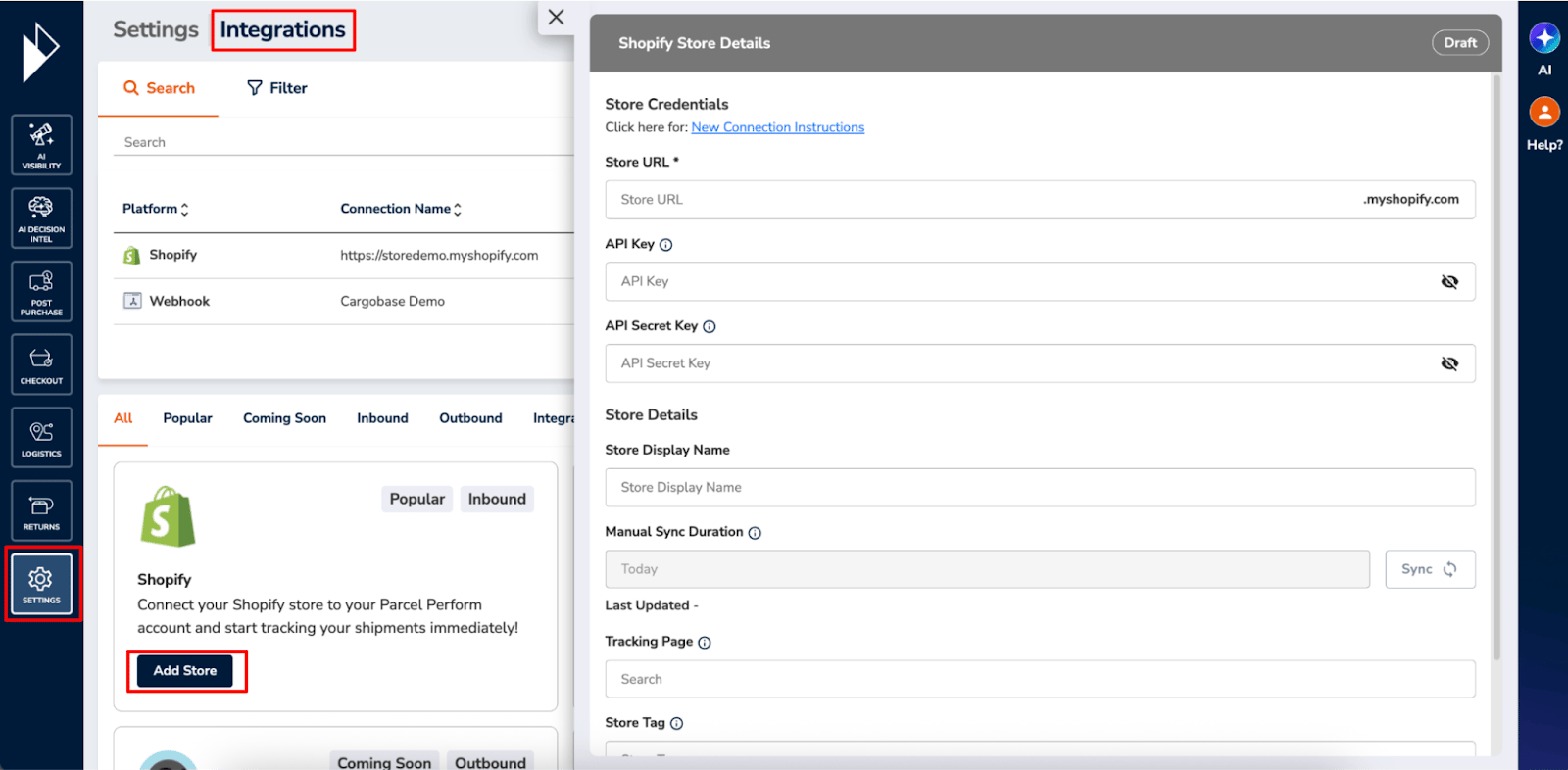 **Store credentials**
| Field | Needed for | Notes |
| ------------------ | --------------------- | ---------------------------------------------------------------------------------- |
| **Store URL** | Saving and activating | Only the subdomain part: for `shopify-store.myshopify.com`, enter `shopify-store`. |
| **API Key** | Activating | Your Shopify app's **Client ID** (created in Step 2). |
| **API Secret Key** | Activating | Your Shopify app's **Secret**. |
**Store details** (all optional)
* **Store Display Name** — defaults to the store name retrieved from Shopify; also stamped on imported shipments.
* **Tracking Page** — link imported shipments to one of your tracking pages for consumer notifications and tracking.
* **Store Tag** — tags added to every shipment imported from this store.
* **Manual Sync Duration** (activated integrations only) — shipments flow in automatically, but you can re-pull history on demand: **Today**, **Last week**, **Last month**, or **Last three months**, then **Sync**.
## Step 2 — Create a Shopify app and retrieve credentials
The integration authenticates through an app you create in Shopify's Dev Dashboard.
Shopify's **Legacy Custom Apps** are no longer supported for new integrations — use **Build apps in Dev Dashboard**.
Log in to your Shopify store, go to **Settings** → **Apps** → **Develop apps**, and select **Build apps in Dev Dashboard**.
**Store credentials**
| Field | Needed for | Notes |
| ------------------ | --------------------- | ---------------------------------------------------------------------------------- |
| **Store URL** | Saving and activating | Only the subdomain part: for `shopify-store.myshopify.com`, enter `shopify-store`. |
| **API Key** | Activating | Your Shopify app's **Client ID** (created in Step 2). |
| **API Secret Key** | Activating | Your Shopify app's **Secret**. |
**Store details** (all optional)
* **Store Display Name** — defaults to the store name retrieved from Shopify; also stamped on imported shipments.
* **Tracking Page** — link imported shipments to one of your tracking pages for consumer notifications and tracking.
* **Store Tag** — tags added to every shipment imported from this store.
* **Manual Sync Duration** (activated integrations only) — shipments flow in automatically, but you can re-pull history on demand: **Today**, **Last week**, **Last month**, or **Last three months**, then **Sync**.
## Step 2 — Create a Shopify app and retrieve credentials
The integration authenticates through an app you create in Shopify's Dev Dashboard.
Shopify's **Legacy Custom Apps** are no longer supported for new integrations — use **Build apps in Dev Dashboard**.
Log in to your Shopify store, go to **Settings** → **Apps** → **Develop apps**, and select **Build apps in Dev Dashboard**.
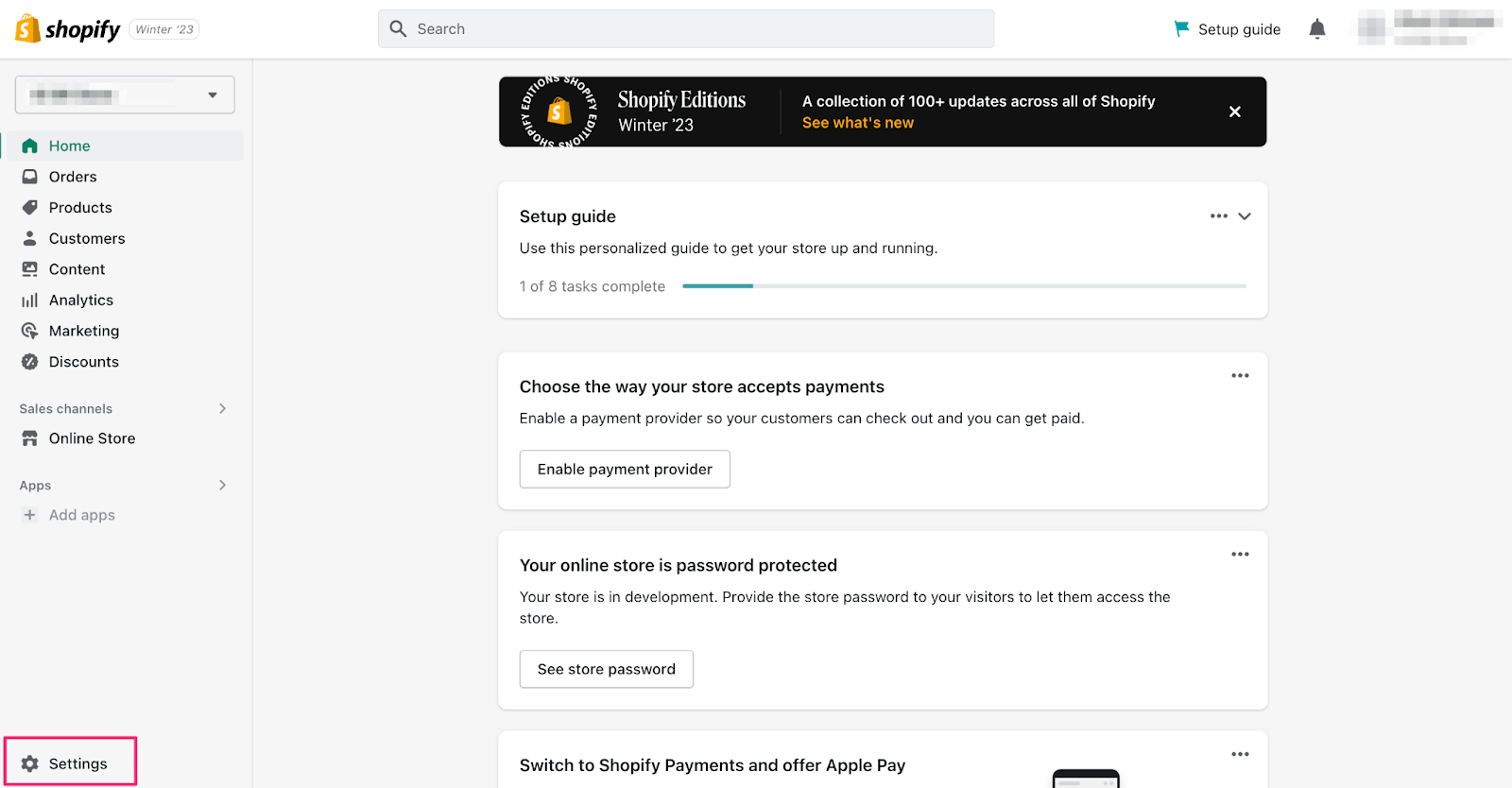
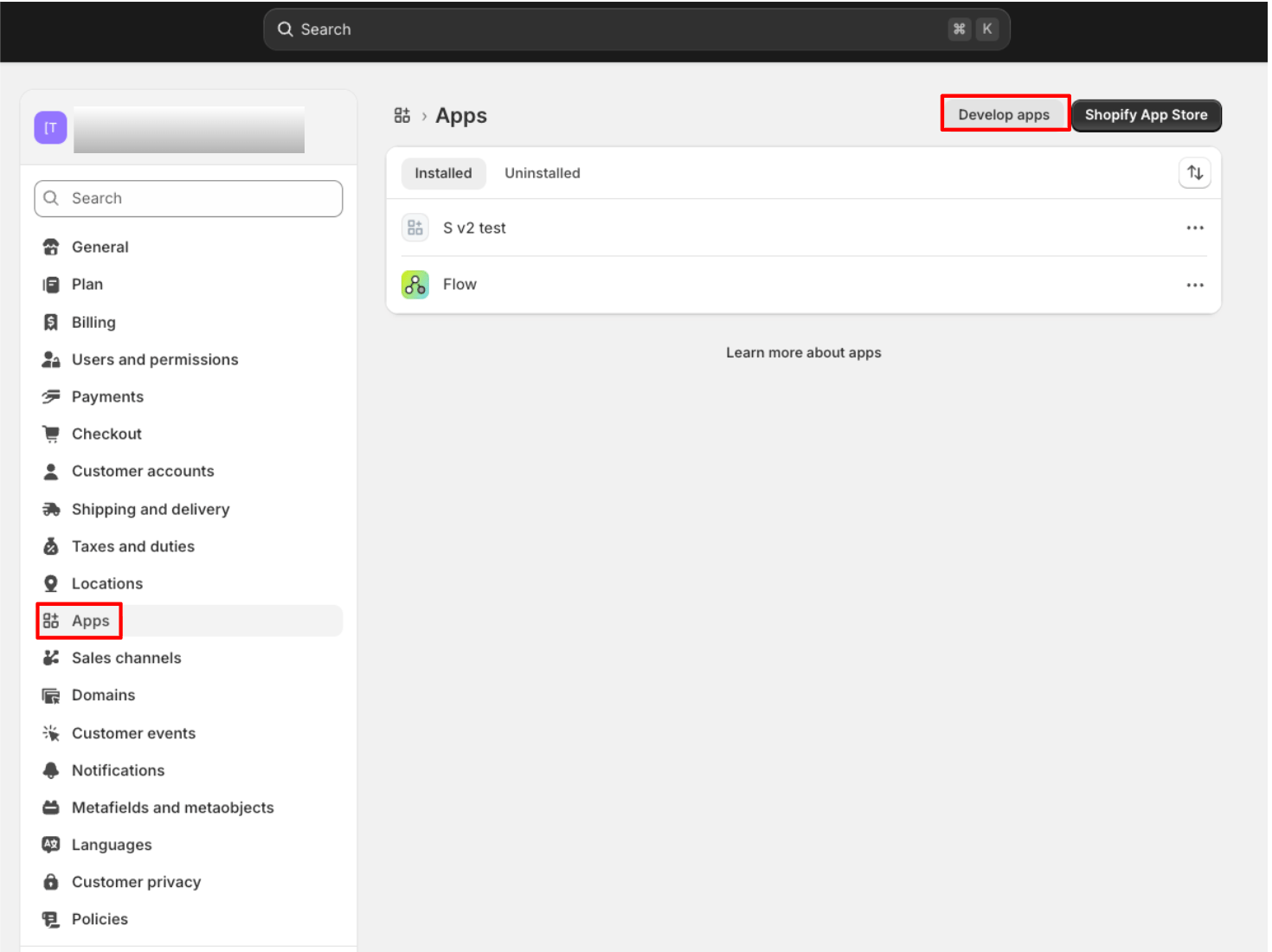
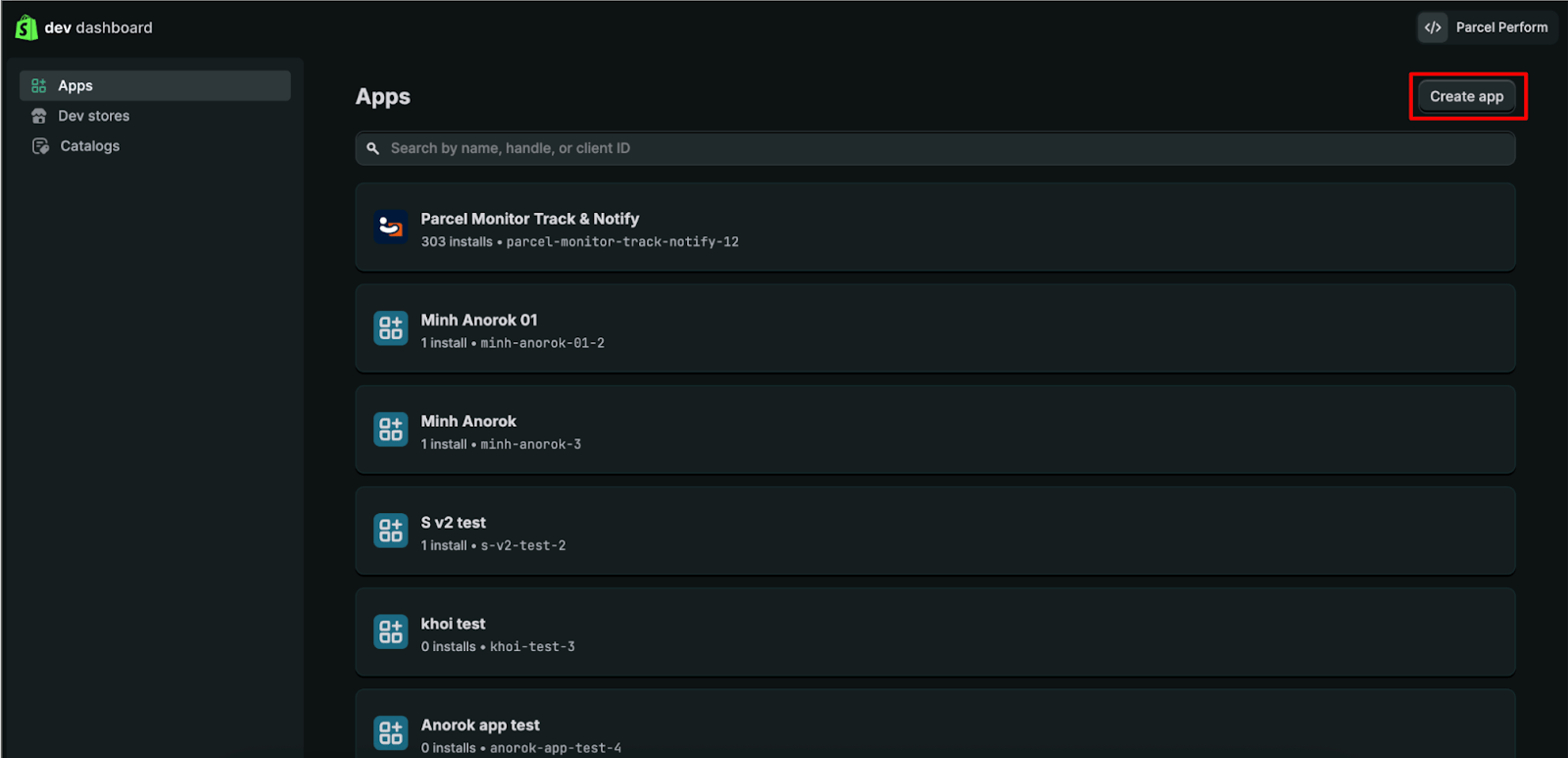
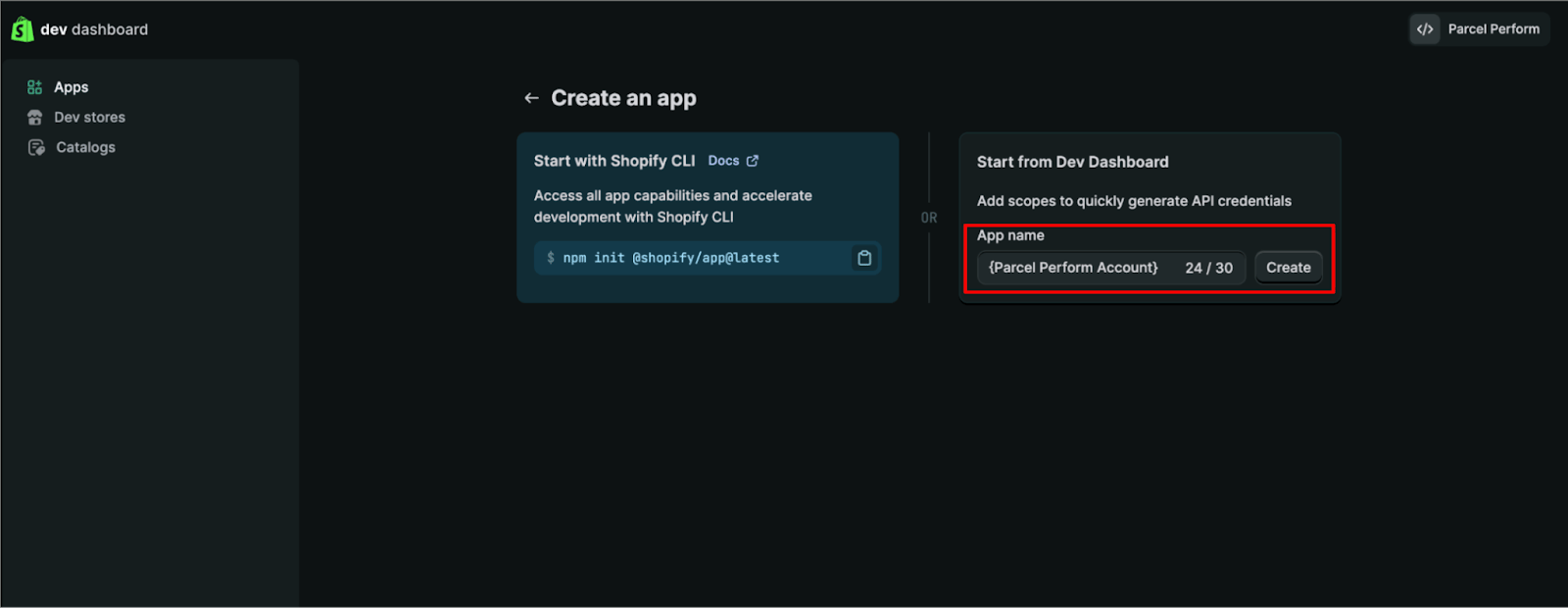
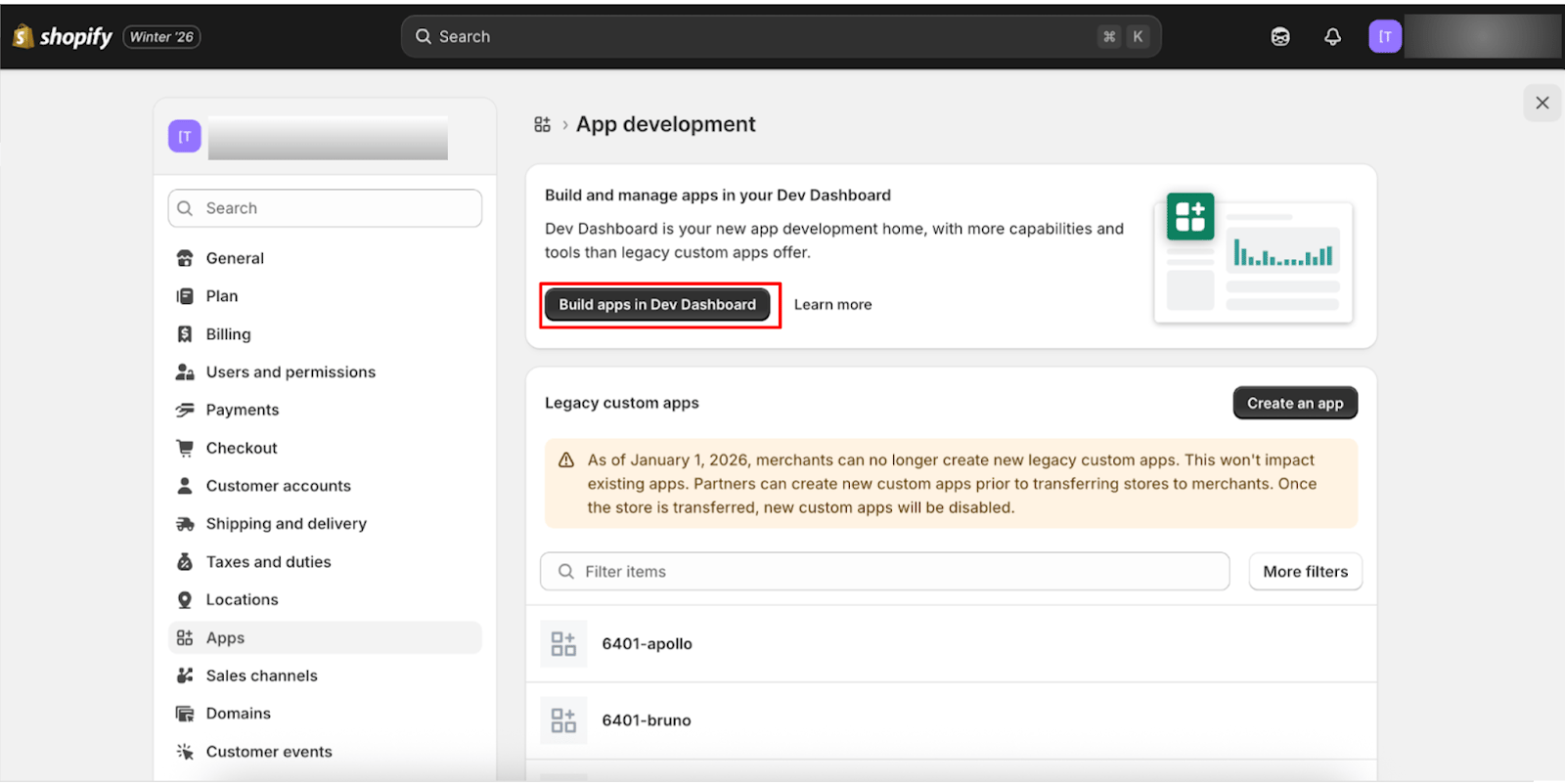 Select **Create app** and name it — any name works; we recommend `Perform.AI Integration - {your account name}`.
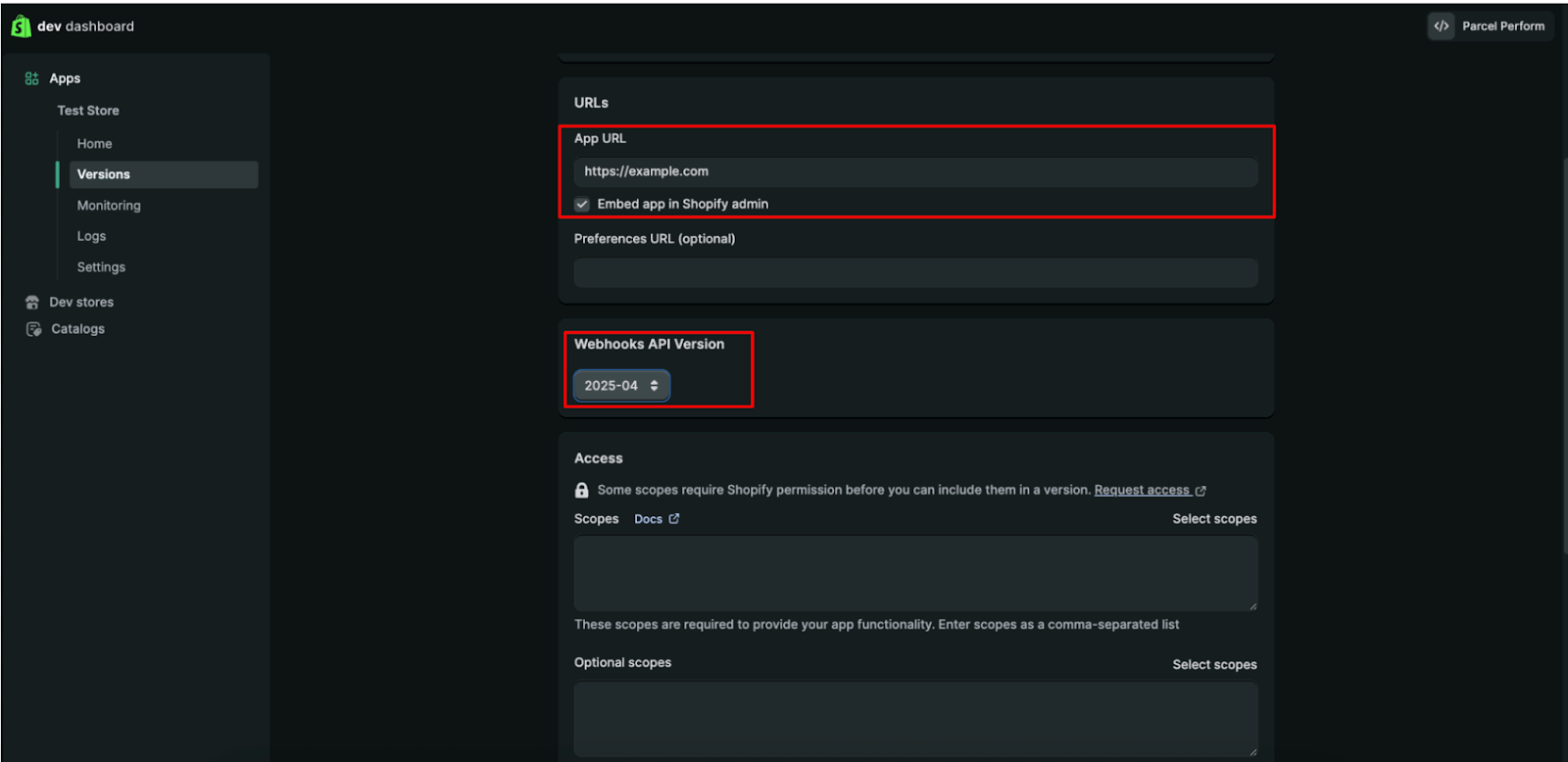
 On the **Versions** page:
* Set the App URL to `https://www.parcelperform.com` and **uncheck** "Embed app in Shopify admin" — there is no UI to embed; a successful install simply redirects to that website.
* In **Webhook API Version**, select the **oldest available version**. Shopify updates versions quarterly with fall-forward logic — picking the oldest means you set this once and never need to update it.
On the **Versions** page:
* Set the App URL to `https://www.parcelperform.com` and **uncheck** "Embed app in Shopify admin" — there is no UI to embed; a successful install simply redirects to that website.
* In **Webhook API Version**, select the **oldest available version**. Shopify updates versions quarterly with fall-forward logic — picking the oldest means you set this once and never need to update it.
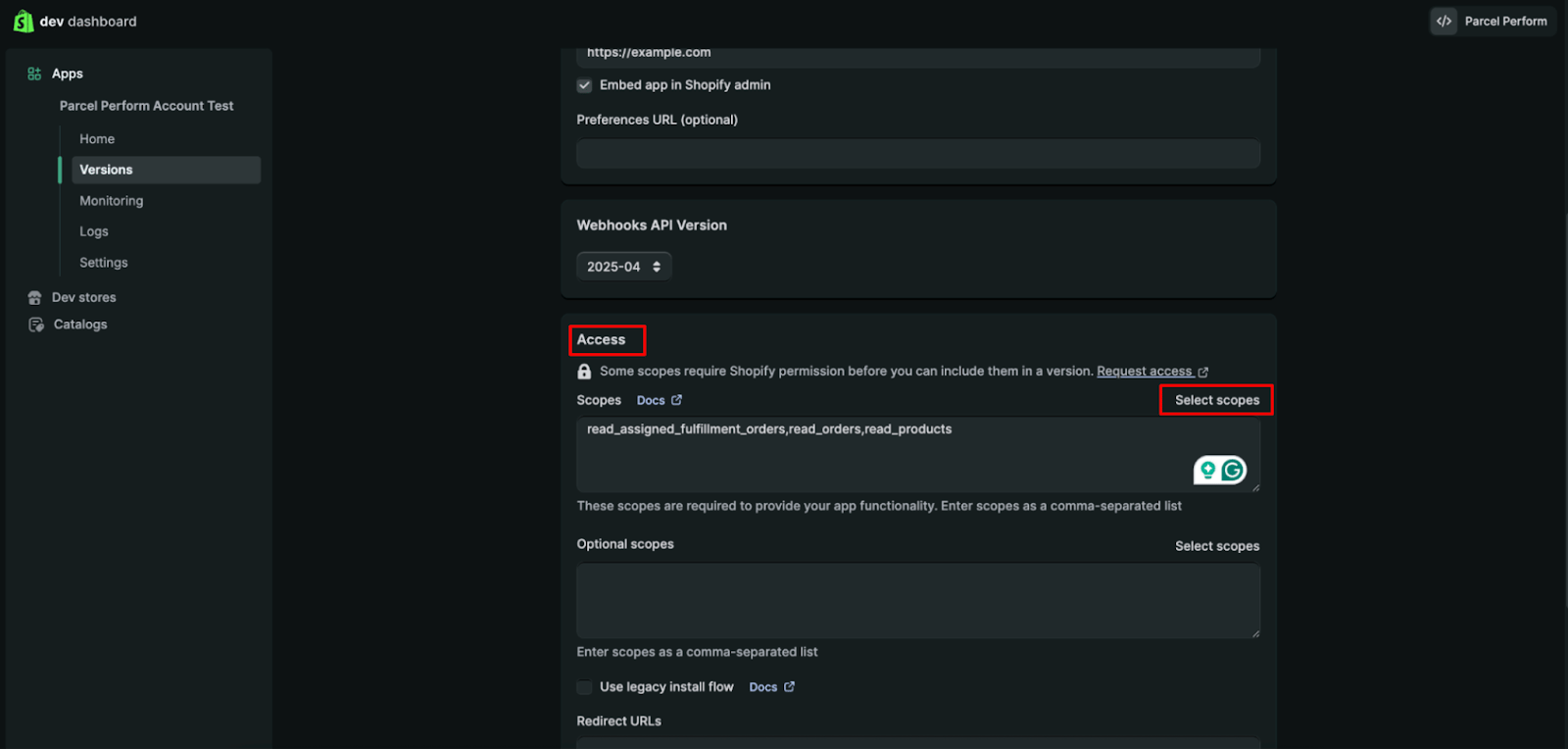
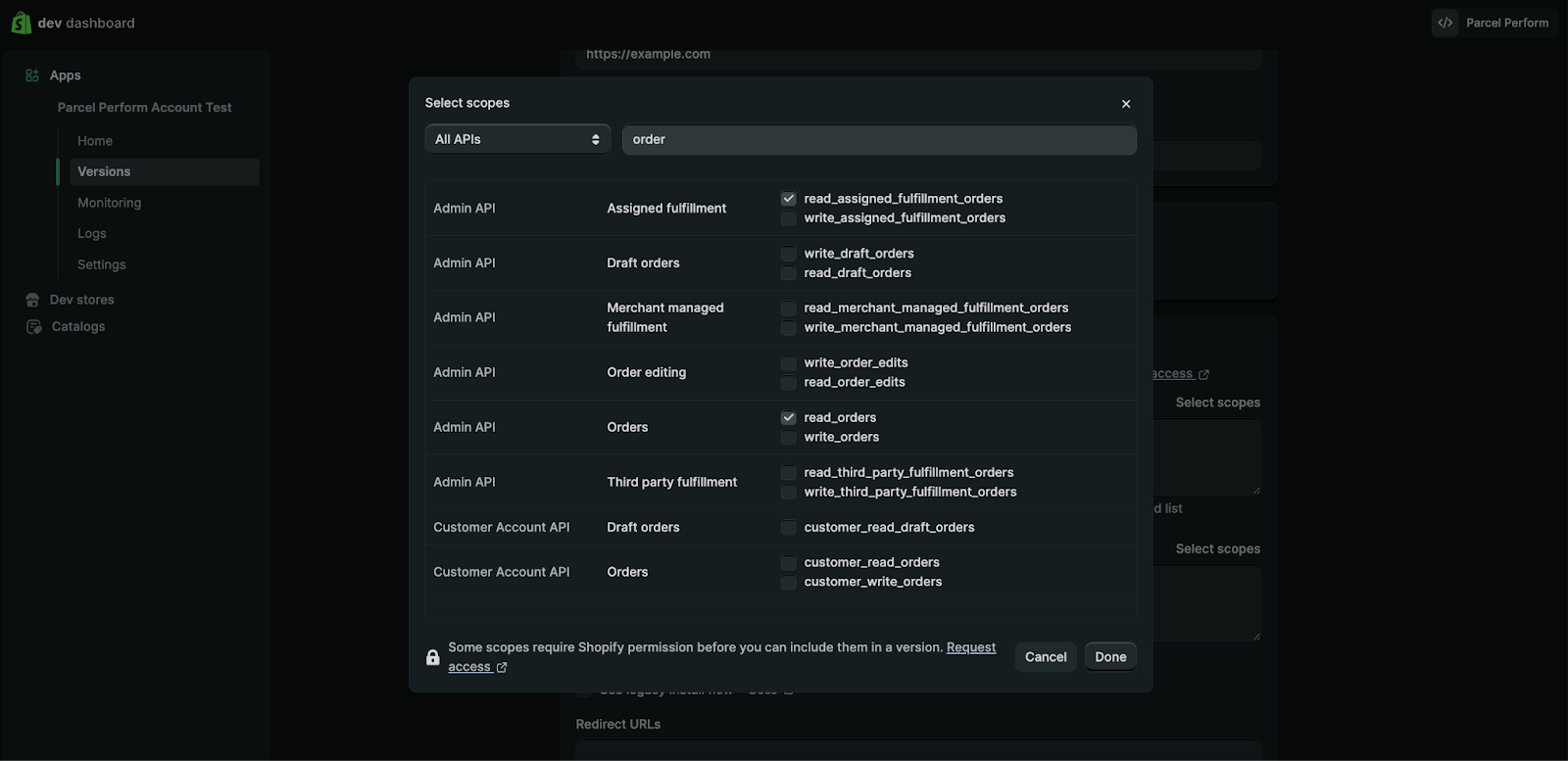
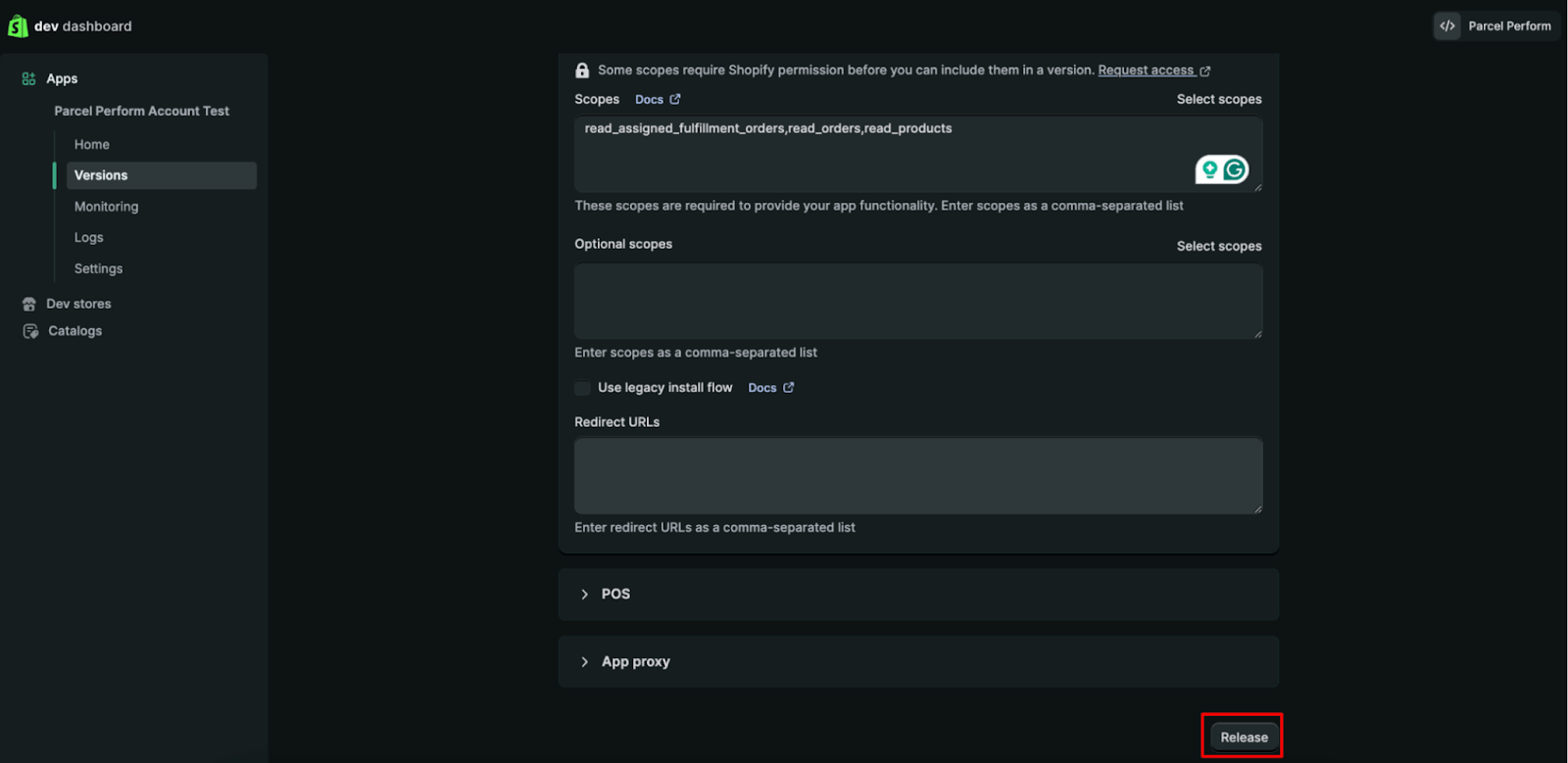
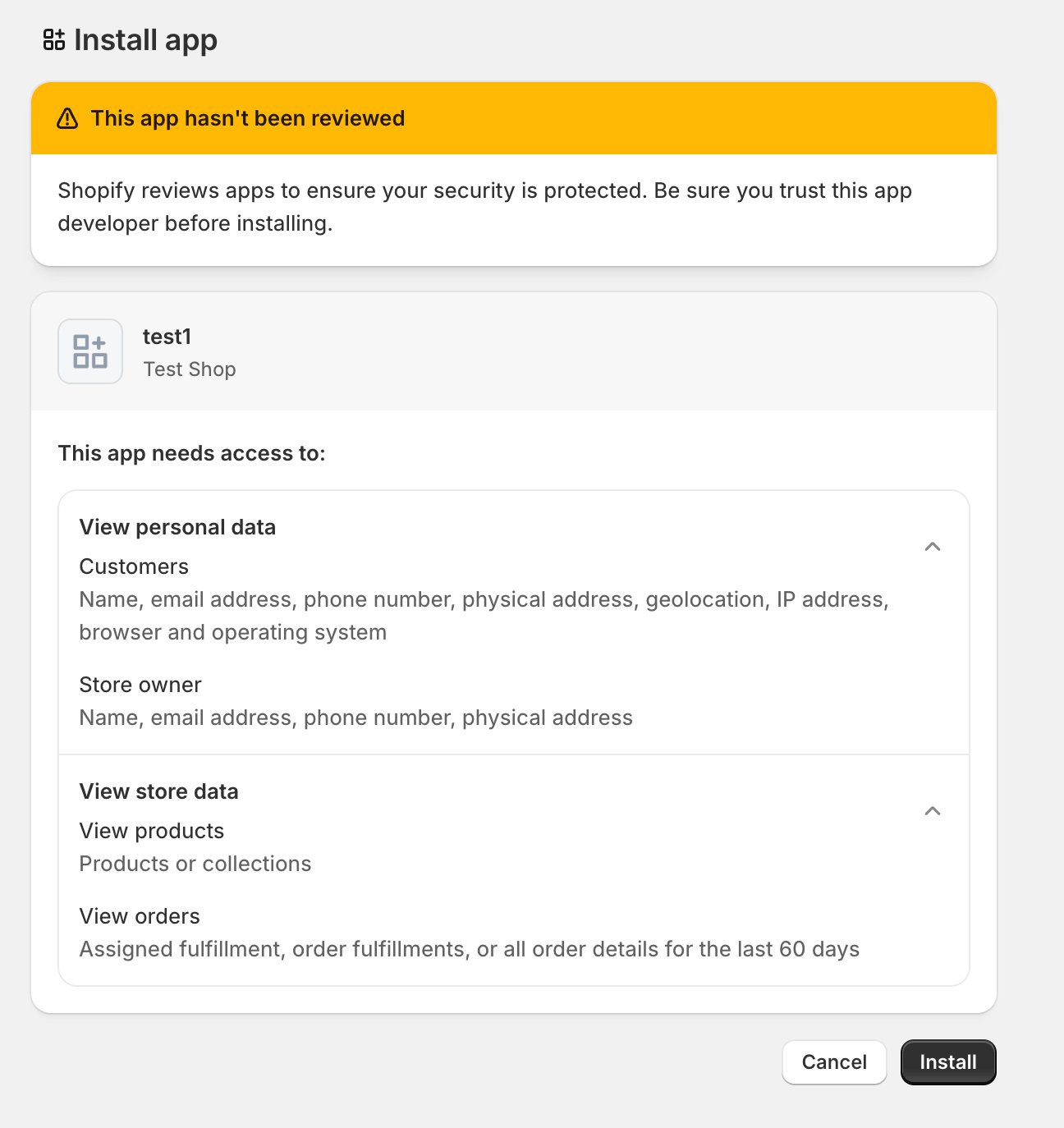
 In the **Access** section, select these four scopes — all read-only, and all **mandatory** for the integration to work:
* `read_orders` — order and shipment information
* `read_products` — line-item product images
* `read_assigned_fulfillment_orders` — fulfillment order information
* `read_fulfilments` — fulfillment information
In the **Access** section, select these four scopes — all read-only, and all **mandatory** for the integration to work:
* `read_orders` — order and shipment information
* `read_products` — line-item product images
* `read_assigned_fulfillment_orders` — fulfillment order information
* `read_fulfilments` — fulfillment information
 Then select **Release** to publish the app version.
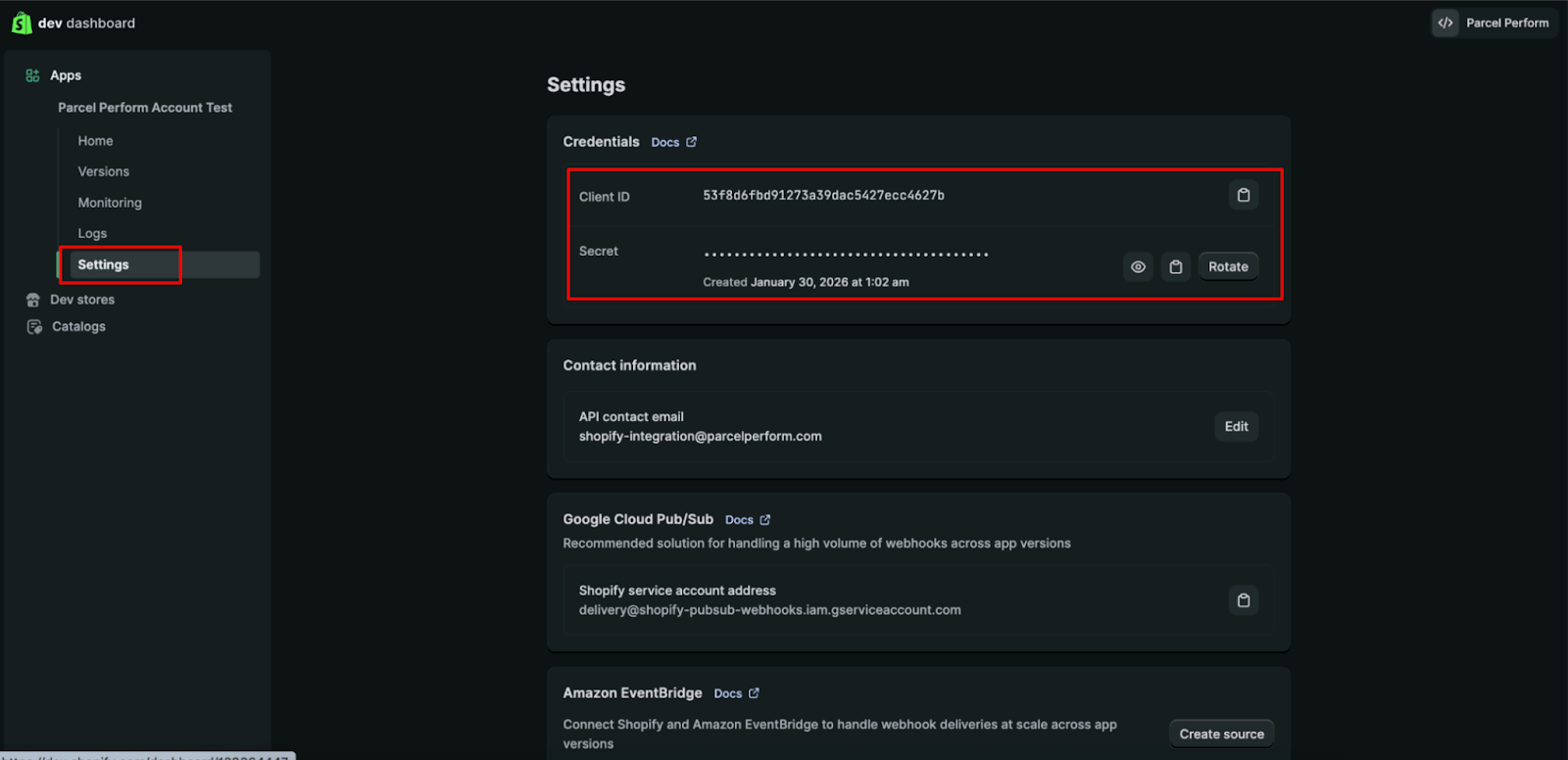
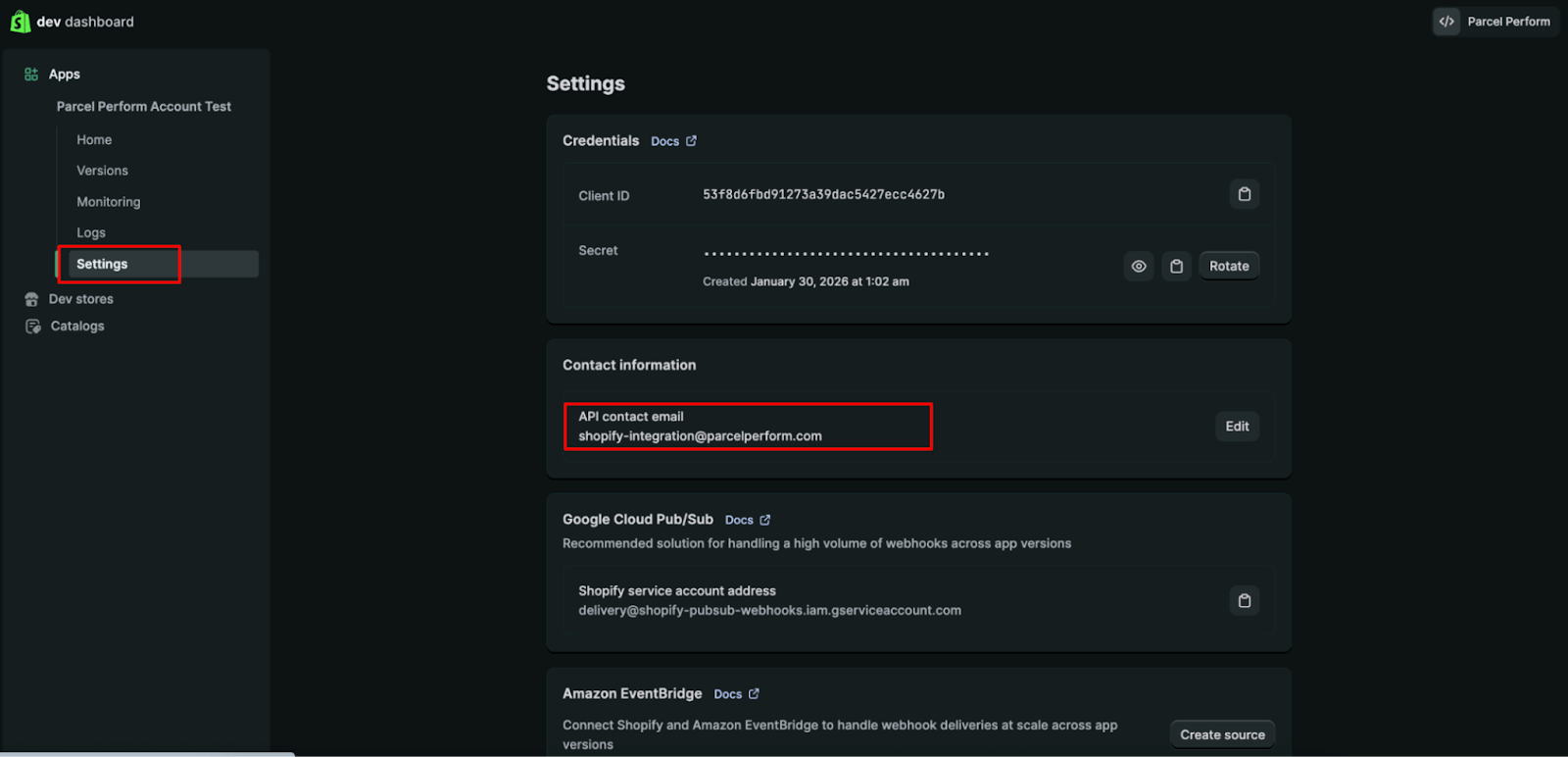
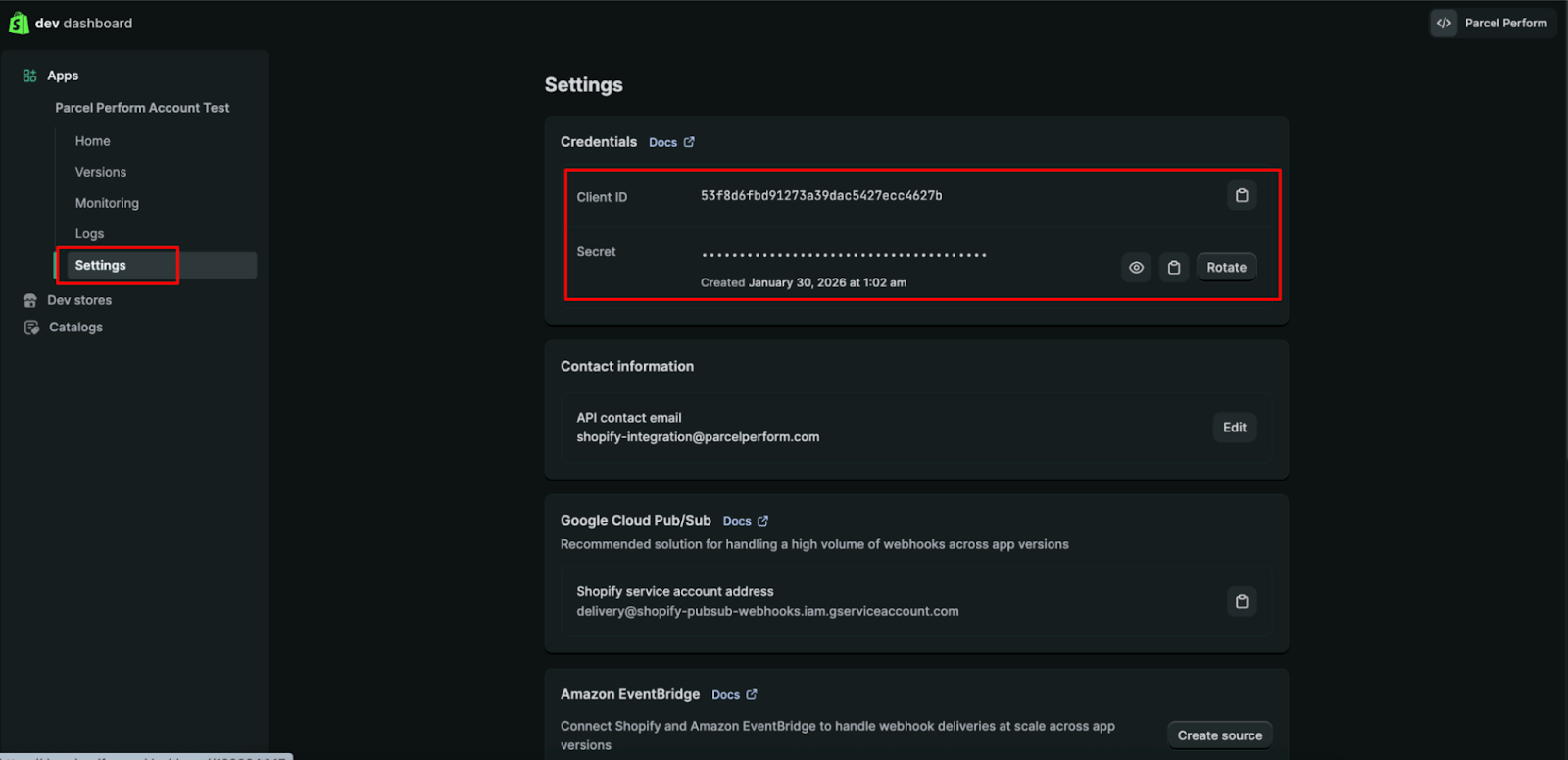
 Open the app's **Settings** tab — your **Client ID** and **Secret** live here (no access token is required). Scroll to **Contact Information**, select **Edit**, and enter `shopify-integration@parcelperform.com` — this lets Perform.AI receive Shopify's notices about your app and fix issues quickly. **Save**.
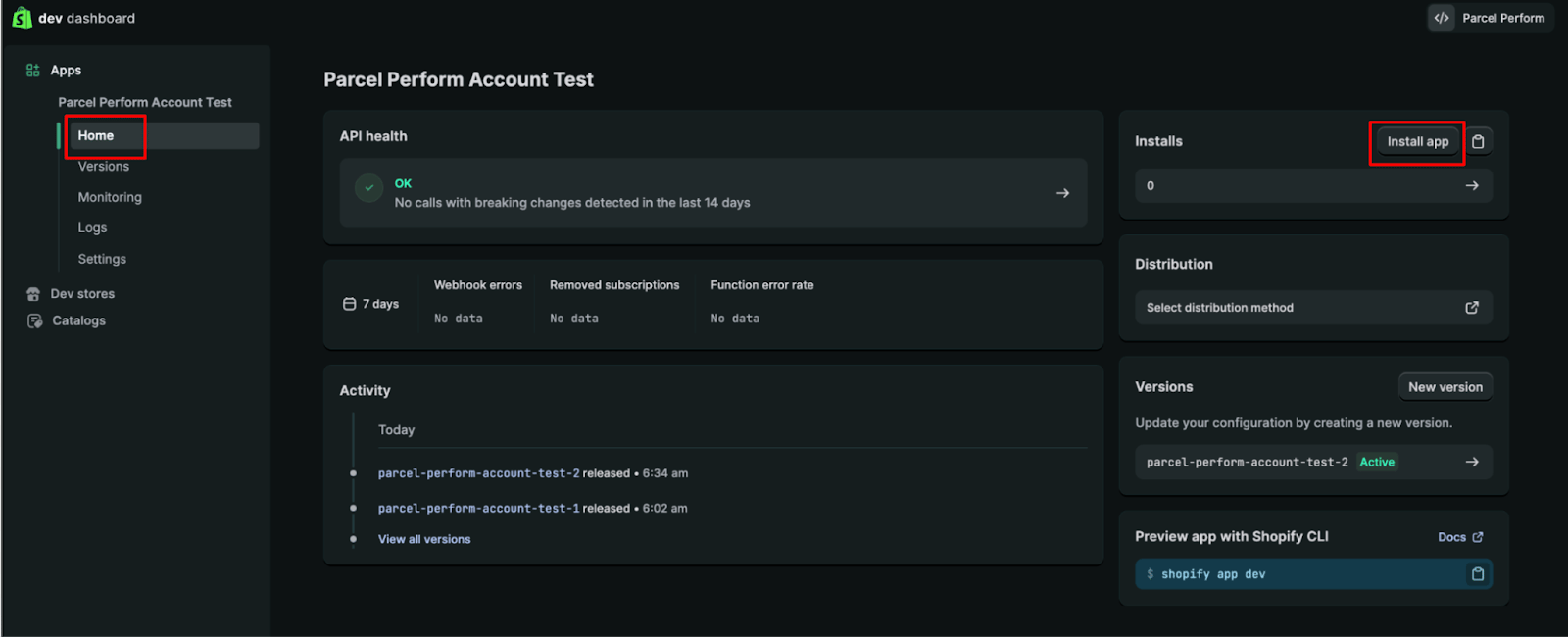
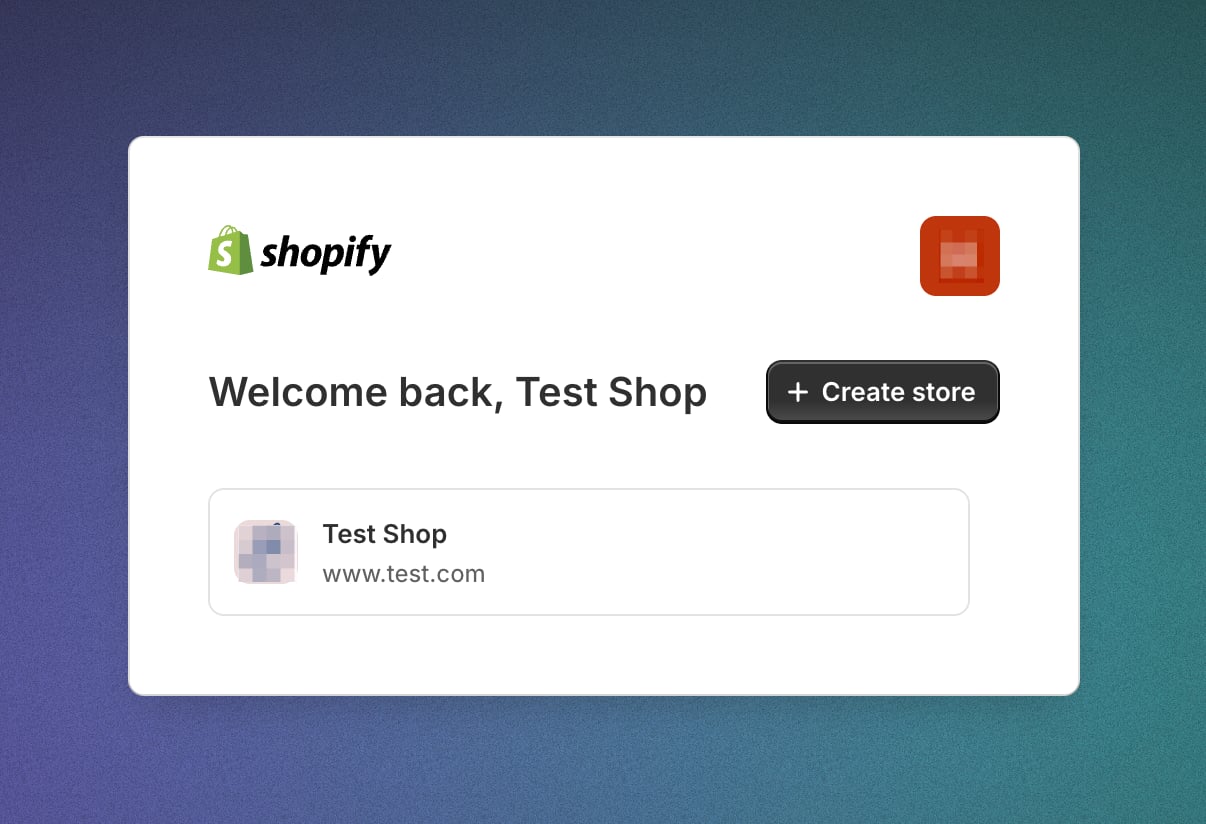
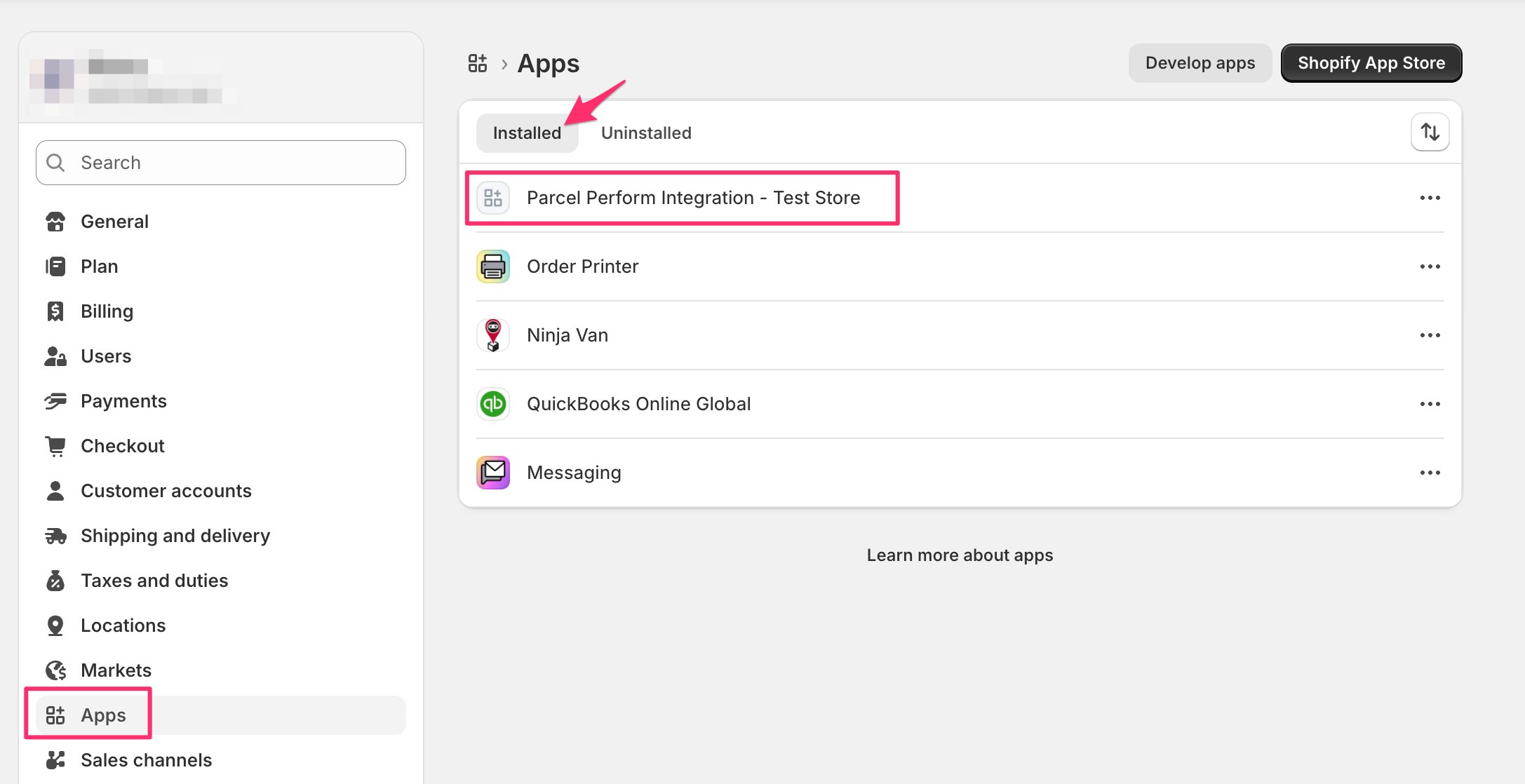
 Go to **Home** → **Install app** → **Install**, pick the store, and confirm the installation on the store's Install App page. A successful install redirects you to the Perform.AI website; verify under **Settings → Apps** in your store admin that the app appears in the **Installed** tab.
 Back in **Dev Dashboard → App → Settings**, copy the values into your Perform.AI integration panel: Shopify's **Client ID** → the **API Key** field, and Shopify's **Secret** → the **API Secret Key** field.
 ## Step 3 — Save and activate
1. **Save** the integration (bottom right) — leaving without saving loses your input. The integration's status becomes **Draft**.
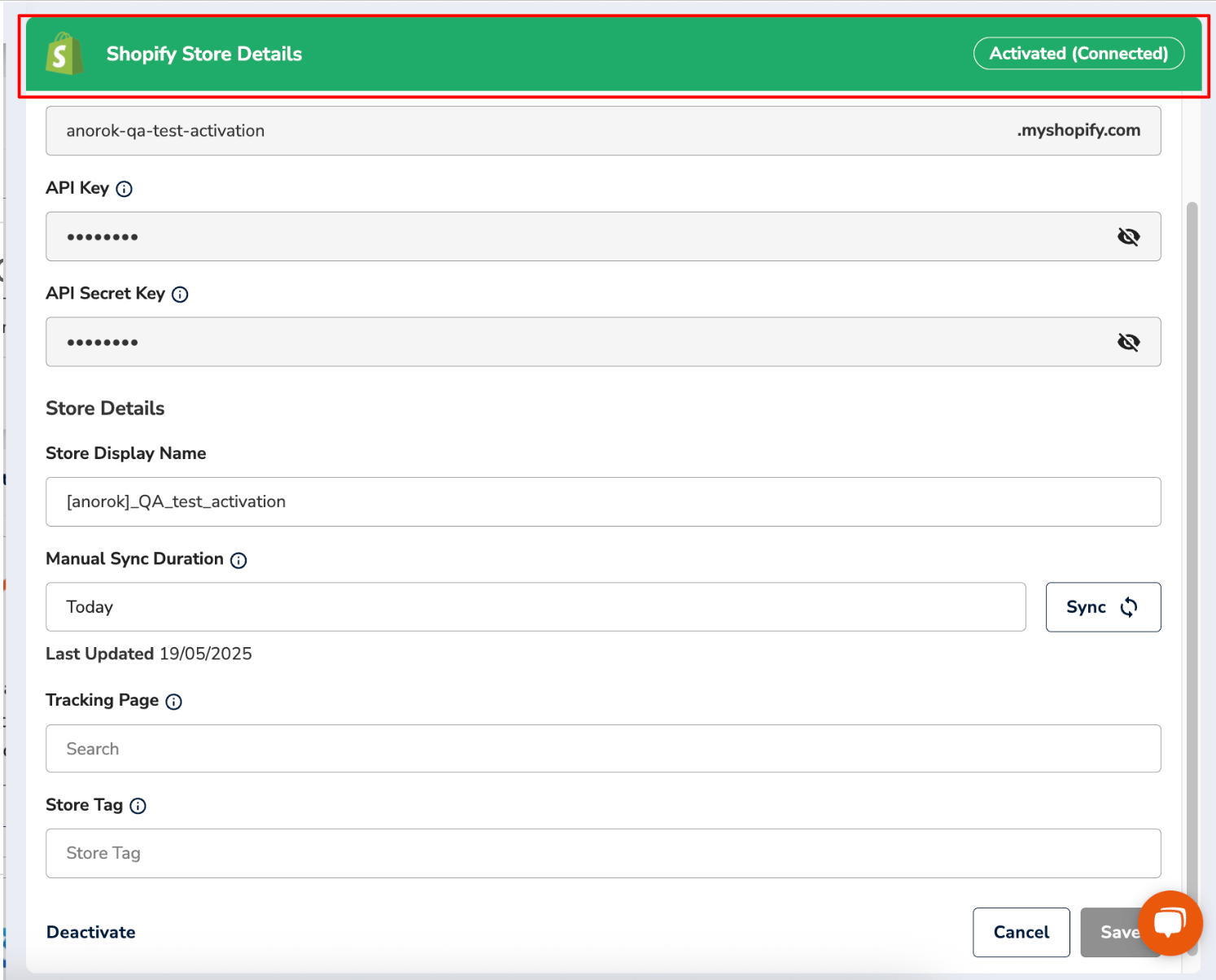
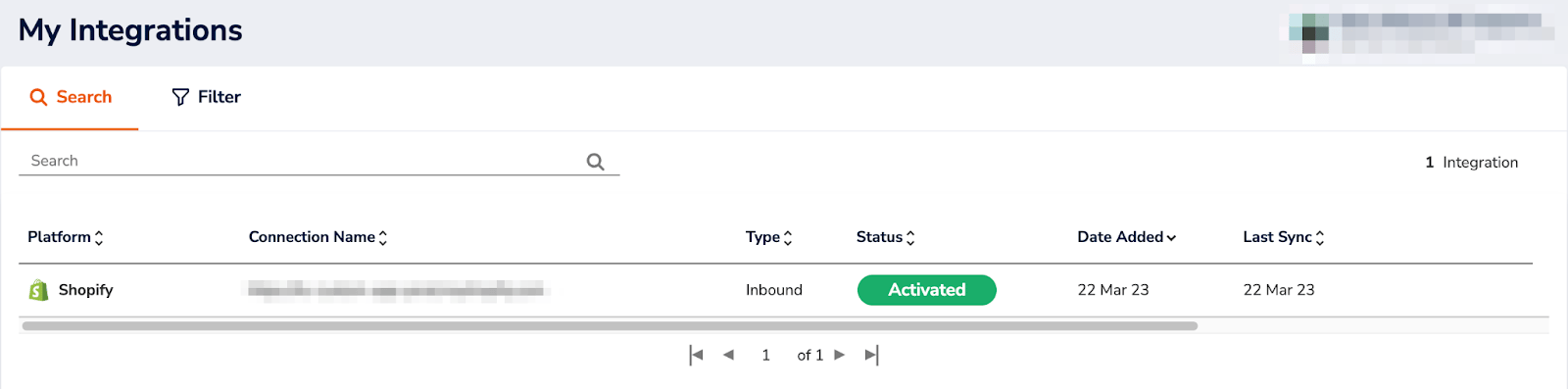
2. **Activate** (bottom left). On success the status shows **Activated (Connected)** — "Activated" is the Perform.AI side, "Connected" is the app status reported by Shopify — and the integration appears as Activated in your Integration Overview.
## Step 3 — Save and activate
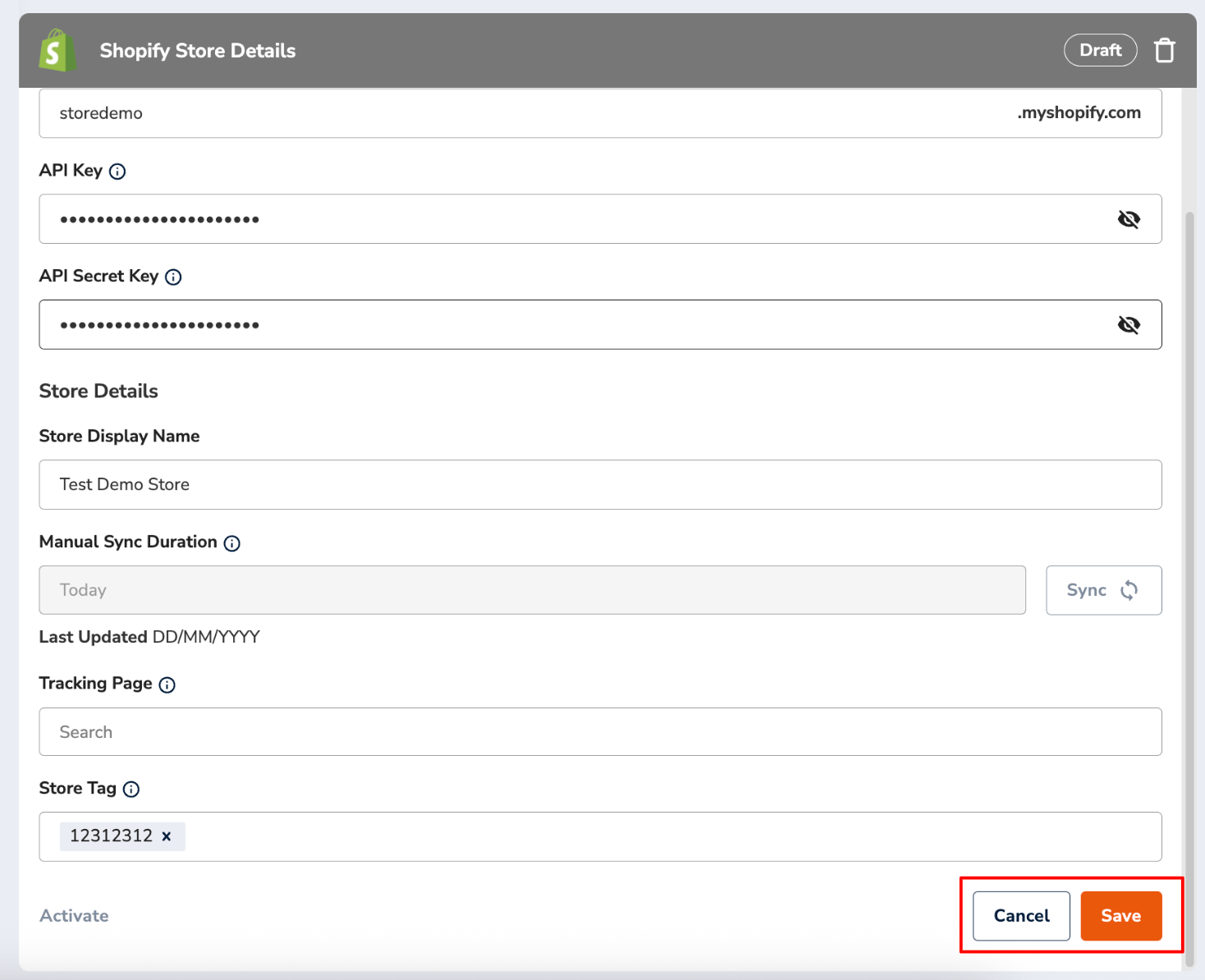
1. **Save** the integration (bottom right) — leaving without saving loses your input. The integration's status becomes **Draft**.
2. **Activate** (bottom left). On success the status shows **Activated (Connected)** — "Activated" is the Perform.AI side, "Connected" is the app status reported by Shopify — and the integration appears as Activated in your Integration Overview.
 Notes for later:
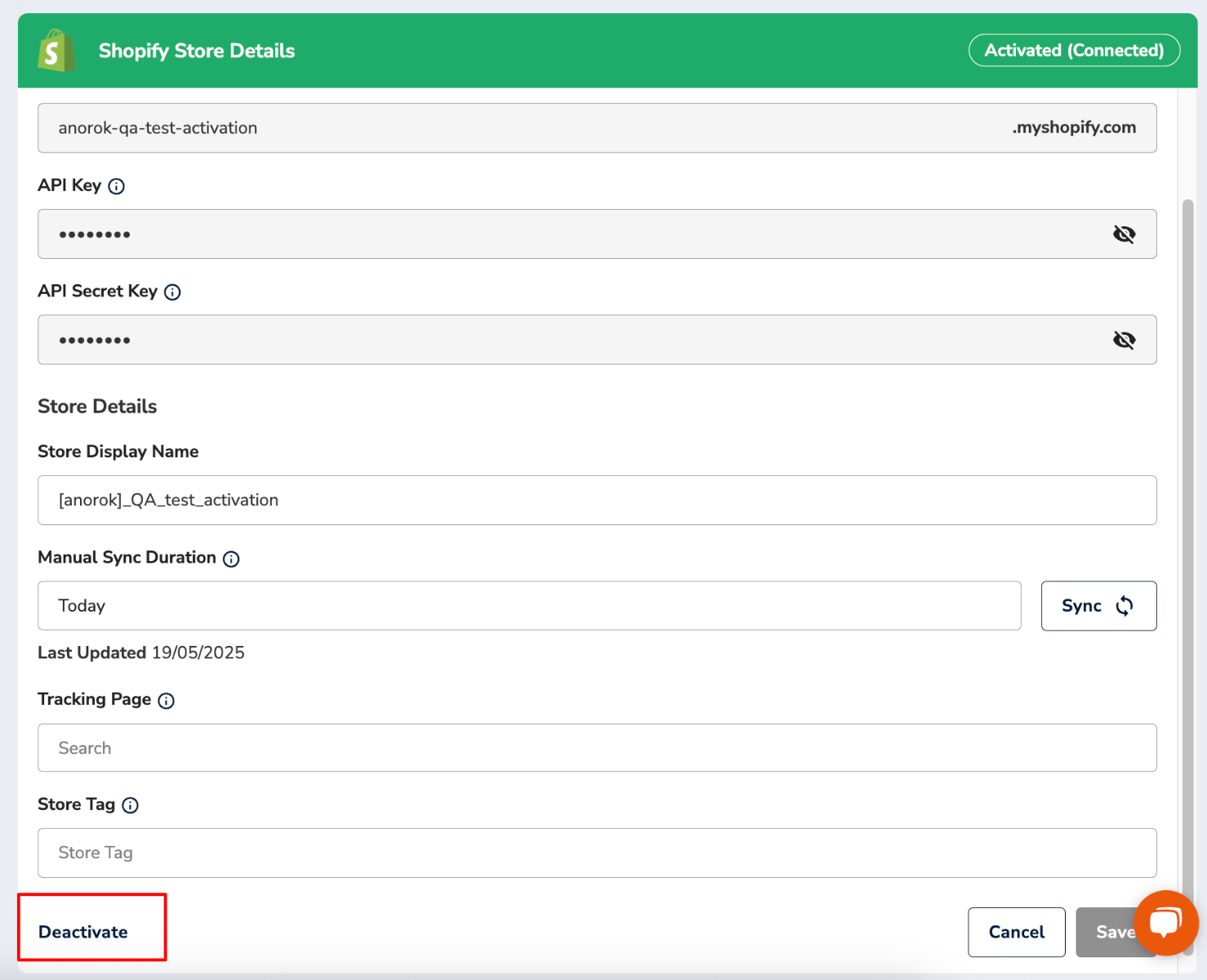
* Credentials display truncated for security — to change the API Key or Secret Key you must re-enter the full value, and only after **deactivating** the integration. Store details (display name, tracking page) can change while active.
* The trash icon (top right of the panel) deletes a saved integration.
Notes for later:
* Credentials display truncated for security — to change the API Key or Secret Key you must re-enter the full value, and only after **deactivating** the integration. Store details (display name, tracking page) can change while active.
* The trash icon (top right of the panel) deletes a saved integration.
 Your Shopify store is now connected — shipments import and track automatically from here on.